PPSSPP APK Cheats Guide: How CWCheat Codes Work on Android
Understand PPSSPP APK cheats on Android: how CWCheat codes work, where cheat files live, how to enable cheats safely, why codes break saves, and how to remove cheats cleanly.
Learn how to enjoy PPSSPP on a Windows PC: system requirements, setup steps, controller pairing, graphics settings for large monitors, save transfers from Android, and fixes for common PC problems.
Many Android players eventually ask whether the same PSP library they enjoy on a phone can move to a bigger screen, and PPSSPP APK experience translates naturally to Windows because PPSSPP is a cross-platform emulator with shared settings, shared save formats, and the same legal game backup model on every device.
Playing on PC brings real advantages: a large monitor makes PSP games look sharp at high rendering resolutions, a wired controller feels closer to the original handheld, and long RPG sessions are easier without battery worries. The setup is straightforward once you know which version to install and how your saves travel. Everything covered here ties back to the main PPSSPP APK Download for Android page, where the download and the key facts live.
A Windows PC gives PPSSPP more processing headroom than most phones, so demanding PSP titles hold their frame rate at higher rendering resolutions. Menus feel snappier, load screens pass faster, and texture filtering looks cleaner on a monitor than on a small phone panel.
PC play also suits certain genres. Racing games benefit from a proper gamepad and a wide view, turn-based RPGs are comfortable with a keyboard nearby for notes, and fighting games feel more precise with a wired controller that has almost no input delay.
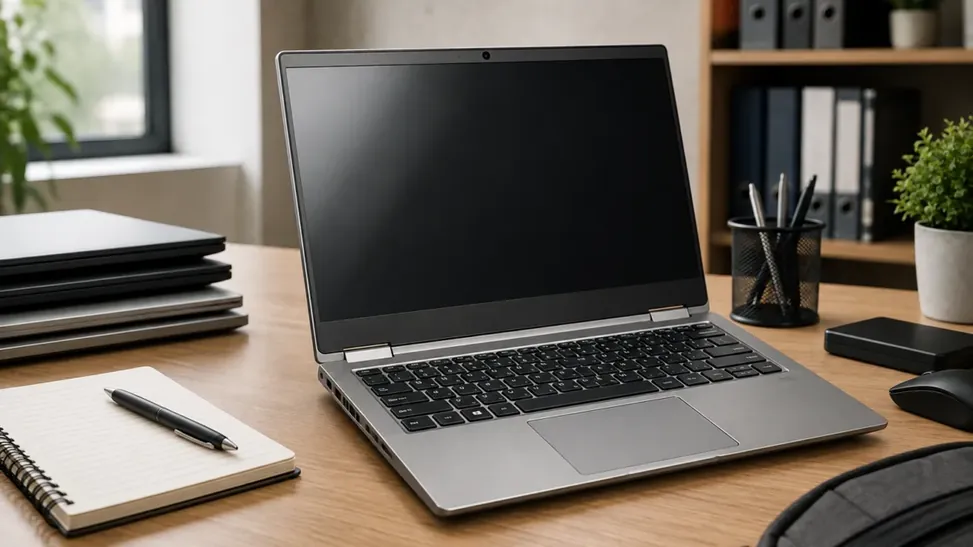
PPSSPP for Windows runs on modest hardware. Any reasonably modern laptop or desktop with integrated graphics can run many PSP games at native or double resolution, while a dedicated graphics card allows much higher upscaling.
You also need your own legal PSP game backups in ISO or CSO format, exactly as on Android. The emulator ships without games on every platform, and the PC build follows the same rule.
Installation on Windows takes only a few minutes. Follow these steps in order and keep your game files in a dedicated folder so the emulator can find them quickly.
Download the Windows build of PPSSPP from the official project site.
Run the installer or extract the portable ZIP to a folder such as Documents/PPSSPP.
Launch PPSSPP once so it creates its PSP folder structure.
Create a separate Games folder and copy your legal ISO or CSO backups into it.
In PPSSPP, browse to the Games folder from the home screen.
Open a game once to confirm it boots before changing any settings.
On a monitor, rendering resolution is the setting that matters most. Raising it to match or exceed your display resolution removes the softness PSP games show on large screens. Start at 3x PSP resolution on integrated graphics and increase gradually while watching the frame rate.
Texture scaling and anisotropic filtering help flat PSP textures look cleaner at PC viewing distances. Keep frame skipping off on capable hardware, because a strong PC should render every frame natively.
PPSSPP on Windows supports Xbox, PlayStation, and generic USB controllers, plus most Bluetooth gamepads. Connect the controller before launching the emulator so it is detected cleanly, then map buttons under Controls if the default layout does not match your pad.
Wired connections give the lowest latency for rhythm and fighting games. Bluetooth is fine for RPGs and adventure titles, but switch to a cable if you notice delayed inputs.
Connect the controller by USB or pair it over Bluetooth.
Open PPSSPP and go to Settings, then Controls.
Choose Control Mapping and test each button.
Remap any button that feels misplaced.
Save the profile so it loads automatically next session.
Because both platforms use the same PSP folder layout, your Android saves work on PC. Copy the PSP/SAVEDATA folder from your phone into the PC PPSSPP folder, keeping the folder names unchanged, and your in-game progress appears in the same slots.
Save states are less portable than in-game saves and may not load across versions, so always create an in-game save before moving devices. Back up the whole PSP folder before copying anything, in both directions.
Even with a controller connected, PC keyboard shortcuts make PPSSPP faster to use. The escape key opens the pause menu, function keys switch save state slots, and fast-forward can be held during long travel sections in RPGs.
You can also map keyboard keys as a complete fallback control scheme, which is handy for menu-heavy games or when a controller battery dies mid-session.
If a game runs slowly on PC, the cause is usually an outdated graphics driver or a rendering resolution set far beyond the hardware. Update drivers first, then lower resolution one step at a time.
Black screens after the intro often point to a damaged game backup or the buffered rendering setting. Test the same game file on Android to confirm the backup itself is healthy before changing many settings.
Neither platform is strictly better. PC wins for long sessions, big screens, and maximum graphics quality. Android wins for portability, touch play in short bursts, and continuing a game anywhere.
Many players use both: progress made on the phone during the day continues on PC at night through shared save folders. That flexibility is one of PPSSPP's strongest features.
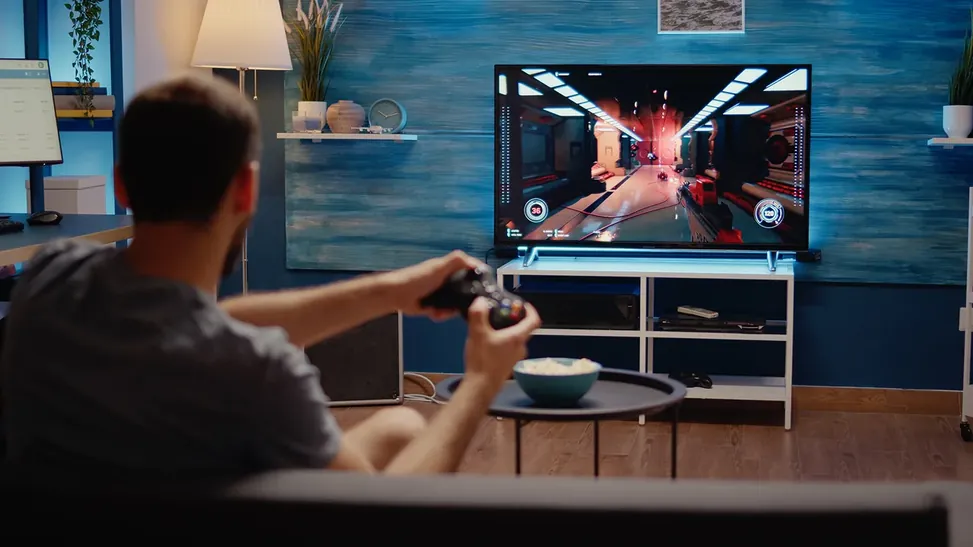
A PC already connected to a television turns PPSSPP into a living-room console. Set the rendering resolution for the TV's size, use exclusive full-screen where your build offers it, and pair the controller to the PC before launching so the sofa is your only control point.
Wireless controllers shine here; a keyboard and mouse within reach still help for settings changes between games.
Running PPSSPP on a Windows PC turns the same legal PSP backups you play on Android into a big-screen experience with sharper graphics, proper controllers, and easy backups. Install the official Windows build, keep your games in one tidy folder, set the rendering resolution to suit your hardware, and move the SAVEDATA folder across whenever you switch devices.
Start conservative, raise settings one at a time, and let in-game saves rather than save states carry your progress between phone and PC. That habit keeps a single, reliable save library no matter where you play. The complete treatment of that side of the setup sits in PPSSPP APK Save States, Memory Cards, and Backup Guide. The complete treatment of that side of the setup sits in Best PPSSPP APK Graphics Settings for HD PSP Gameplay.